
This tool can be used to display a Lovelace view of your Home Assistant instance on a jailbroken Kindle device. It regularly takes a screenshot which can be polled and used as a screensaver image of the online screensaver plugin.
If you're looking for a way to render your own HTML, see my other project hass-kindle-screensaver which renders a React page and can be adapted to your specific needs.
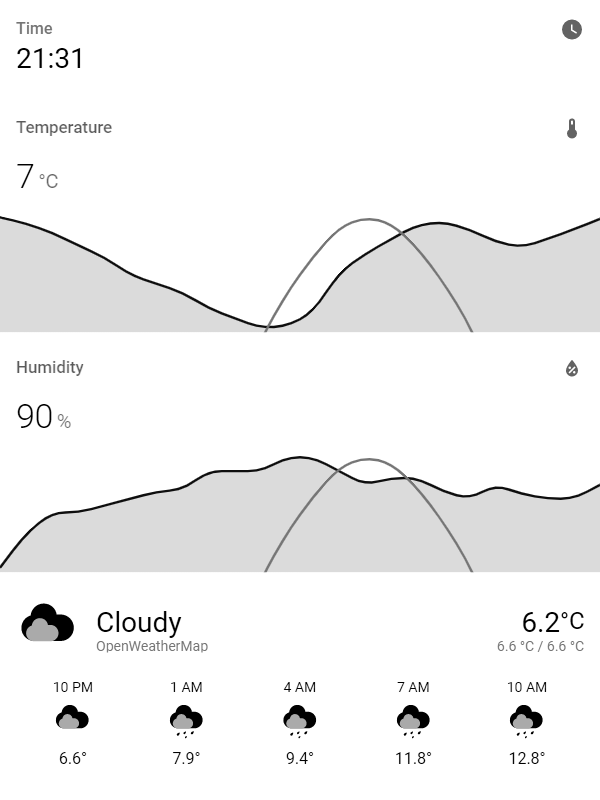
This tool regularly takes a screenshot of a specific page of your home assistant setup. It converts it into the PNG/JPEG grayscale format which Kindles can display.
Using my own Kindle 4 setup guide or the online screensaver extension for any jailbroken Kindle, this image can be regularly polled from your device so you can use it as a weather station, a display for next public transport departures etc.
The tool compares each new screenshot with the previous one and only updates the served image when changes are detected. This keeps the Last-Modified timestamp and ETag header stable, allowing e-ink clients to skip unnecessary downloads and screen refreshes.
You can use a lightweight HEAD request to check for changes without downloading the image:
curl -I http://localhost:5000/Compare the returned ETag or Last-Modified with your last known value — only GET the image if it changed.
Conditional GET and HEAD requests using If-None-Match or If-Modified-Since return 304 Not Modified when the image has not changed.
You can trigger an on-demand render for a single image before downloading it:
curl -v http://localhost:5000/?refresh=1
curl -v http://localhost:5000/2?refresh=1
The response includes X-Render-Status. If rendering fails, the server keeps serving the previous image when one exists and returns X-Render-Status: failed.
For API clients, use POST /render to render all pages, POST /render/2 to render one page, and POST /cache/clear to restart Chromium and clear browser-side frontend caches. Kindle-compatible image requests can combine cache clearing and rendering with ?clearCache=1&refresh=1.
You may simple set up the sibbl/hass-lovelace-kindle-screensaver docker container. The container exposes a single port (5000 by default).
Another way is to use Hassio Addons where you have to add this repository or click here. Then Reload and you should see options to the Lovelace Kindle Screensaver Addon
I recommend simply using the docker-compose.yml file inside this repository, configure everything in there and run docker-compose up -d within the file's directory. This will pull the docker image, create the container with all environment variables from the file and run it in detached mode (using -d, so it continues running even when you exit your shell/bash/ssh connection).
Additionally, you can then later use docker-compose pull && docker-compose up -d to update the image in case you want to update it.
You can then access the image by doing a simple GET request to e.g. http://localhost:5000/ to receive the most recent image (might take up to 60s after the first run).
If you encounter errors like ERR_NAME_NOT_RESOLVED or configuration issues, please see the TROUBLESHOOTING.md guide for detailed help.
Home Assistant related stuff:
| Env Var | Sample value | Required | Array?* | Description |
|---|---|---|---|---|
HA_BASE_URL |
https://your-hass-instance.com:8123 |
yes | yes | Base URL of your home assistant instance |
HA_SCREENSHOT_URL |
/lovelace/screensaver?kiosk |
yes | yes | Relative URL to take screenshot of (btw, the ?kiosk parameter hides the nav bar using the kiosk mode project) |
HA_ACCESS_TOKEN |
eyJ0... |
yes | yes | Long-lived access token from Home Assistant, see official docs |
HA_BATTERY_WEBHOOK |
set_kindle_battery_level |
no | yes | Webhook definied in HA which receives batteryLevel (number between 0-100) and isCharging (boolean) as JSON |
HA_THEME |
eink |
no | yes | Name of the HA theme to use for rendering. Must be installed in your HA instance. When not set, HA's default theme is used. |
HTTP_AUTH_USER |
admin |
no | yes | Username for optional HTTP basic authentication on the image server. Requires HTTP_AUTH_PASSWORD to enable authentication. |
HTTP_AUTH_PASSWORD |
secret |
no | yes | Password for optional HTTP basic authentication on the image server. Requires HTTP_AUTH_USER to enable authentication. |
LANGUAGE |
en |
no | yes | Language to set in browser and home assistant |
PREFERS_COLOR_SCHEME |
light |
no | yes | Enable browser dark mode, use light or dark. |
CRON_JOB |
* * * * * |
no | no | How often to take screenshot |
RENDERING_TIMEOUT |
10000 |
no | no | Timeout of render process, helpful if your HASS instance might be down |
RENDERING_DELAY |
0 |
no | yes | how long to wait between navigating to the page and taking the screenshot, in milliseconds |
RENDERING_SCREEN_HEIGHT |
800 |
no | yes | Height of your kindle screen resolution |
RENDERING_SCREEN_WIDTH |
600 |
no | yes | Width of your kindle screen resolution |
BROWSER_LAUNCH_TIMEOUT |
30000 |
no | no | Timeout for browser launch, helpful if your HASS instance is slow |
BROWSER_CACHE_TTL_SECONDS |
86400 |
no | no | Restart Chromium before rendering after this many seconds to clear browser-side Home Assistant frontend caches. Set to 0 to disable. |
ROTATION |
0 |
no | yes | Rotation of image in degrees, e.g. use 90 or 270 to render in landscape |
SCALING |
1 |
no | yes | Scaling factor, e.g. 1.5 to zoom in or 0.75 to zoom out |
GRAYSCALE_DEPTH |
8 |
no | yes | Grayscale bit depth your kindle supports |
COLOR_MODE |
GrayScale |
no | yes | ColorMode to use, ex: GrayScale, or TrueColor. |
IMAGE_FORMAT |
png |
no | yes | Format for the generated images. Acceptable values are png or jpeg. |
DITHER |
false |
no | yes | Apply a dither to the images. |
REMOVE_GAMMA |
true |
no | yes | Remove gamma correction from image. Computer images are normally gamma corrected since monitors expect gamma corrected data, however some E-Ink displays expect images not to have gamma correction. |
SATURATION |
2 |
no | yes | Saturation level multiplier, e.g. 2 doubles the saturation |
CONTRAST |
2 |
no | yes | Contrast level multiplier, e.g. 2 doubles the contrast |
BLACK_LEVEL |
30% |
no | yes | Black point as percentage of MaxRGB, i.e. crushes blacks below specified level |
WHITE_LEVEL |
90% |
no | yes | White point as percentage of MaxRGB, i.e. crushes whites above specified level |
* Array means that you can append _2, _3, ... _n for a numbered output page. Numbered variables fall back to the unnumbered value when omitted. For example, ROTATION_2=180 only changes the second image; without it, the second image uses ROTATION.
You can access these additional images by making GET Requests http://localhost:5000/2, http://localhost:5000/3 etc.
Numbered HTTP Basic Auth credentials protect the corresponding image and render endpoint. For example, HTTP_AUTH_USER_3 and HTTP_AUTH_PASSWORD_3 apply to /3 and /render/3. When omitted, that page inherits HTTP_AUTH_USER and HTTP_AUTH_PASSWORD; global operations such as /render and /cache/clear use the unnumbered credentials. The /health endpoint remains unauthenticated for container health checks.
The same numbered variables can point each output page at a different Home Assistant instance. Existing single-instance configurations require no changes. This two-instance Docker Compose configuration renders the first image at / and the second at /2:
environment:
  - HA_BASE_URL=https://first-home.example:8123
  - HA_SCREENSHOT_URL=/lovelace/kindle?kiosk
  - HA_ACCESS_TOKEN=first-long-lived-token
  - HA_BASE_URL_2=https://second-home.example:8123
  - HA_SCREENSHOT_URL_2=/lovelace/kindle?kiosk
  - HA_ACCESS_TOKEN_2=second-long-lived-token
Add _3, _4, and so on for more instances. The numbered HA_SCREENSHOT_URL values must be contiguous. You can also override HA_THEME_n, LANGUAGE_n, the battery webhook, and any other page option marked as an array. Omit a numbered setting when that page should inherit the first page's value—for example, several dashboards from the same Home Assistant instance only need additional HA_SCREENSHOT_URL_n values.
All pages share one Chromium process. Each distinct Home Assistant configuration uses an isolated browser context within that process, keeping tokens and browser storage separate without running another container or browser.
To use numbered variables in the Home Assistant Add-On, add them under ADDITIONAL_ENV_VARS:
- name: "HA_BASE_URL_2"
  value: "https://second-home.example:8123"
- name: "HA_SCREENSHOT_URL_2"
  value: "/lovelace/kindle?kiosk"
- name: "HA_ACCESS_TOKEN_2"
  value: "second-long-lived-token"
To avoid problems, please ensure that the name only contains upper case letters, numbers and underscores. The value field must be a string, so it's better to always put your value (especially numbers) into a "string" .
The webhook setting is to let HA keep track of the battery level of the Kindle, so it can warn you about charging it. You need to do the following:
- See below for a patch needed to make the Kindle Online Screensaver plugin send the battery level to this application.
- Create two new helper entities in Home Assistant:
- a new
input_numberentity, e.g.input_number.kindle_battery_level - a new
input_booleanentity, e.g.input_boolean.kindle_battery_charging
- a new
- Add an automation to set the values of these entities using a webhook:
- Define this application's environment variable
HA_BATTERY_WEBHOOKto the name of the webhook defined in the previous step. For multiple devices,HA_BATTERY_WEBHOOK_2, ...HA_BATTERY_WEBHOOK_nis supported as well.

Patch for Kindle Online Screensaver extension
Modify the following lines in the Kindle Online Screensaver extension's bin/update.sh (absolute path on device should be /mnt/us/extensions/onlinescreensaver/bin/update.sh):
...
if [ 1 -eq $CONNECTED ]; then
-     if wget -q $IMAGE_URI -O $TMPFILE; then
+     batteryLevel=`/usr/bin/powerd_test -s | awk -F: '/Battery Level/ {print substr($2, 0, length($2)-1) - 0}'`
+     isCharging=`/usr/bin/powerd_test -s | awk -F: '/Charging/ {print substr($2,2,length($2))}'`
+     if wget -q "$IMAGE_URI?batteryLevel=$batteryLevel&isCharging=$isCharging" -O $TMPFILE; then
        mv $TMPFILE $SCREENSAVERFILE
        logger "Screen saver image updated"
...
Patch for HASS Lovelace Kindle 4 extension
Modify the following lines in the HASS Lovelace Kindle 4 extension's script.sh (absolute path on device should be /mnt/us/extensions/homeassistant/script.sh):
...
- DOWNLOADRESULT=$(wget -q "$IMAGE_URI" -O $TMPFILE)
+ DOWNLOADRESULT=$(wget -q "$IMAGE_URI?batteryLevel=$CHECKBATTERY&isCharging=$IS_CHARGING" -O $TMPFILE)
...Some advanced variables for local usage which shouldn't be necessary when using Docker:
OUTPUT_PATH=./output(destination of rendered image, without extension.OUTPUT_PATH_2,OUTPUT_PATH_3, ... is also supported)PORT=5000(port of server, which returns the last image)USE_IMAGE_MAGICK=false(use ImageMagick instead of GraphicsMagick)UNSAFE_IGNORE_CERTIFICATE_ERRORS=true(ignore certificate errors of e.g. self-signed certificates at your own risk)