This repository is archived and no longer maintained.
Please use the new actively maintained project:
https://github.com/buildersbrewery/lsl-tools
The original Builders Brewery GitHub tools — including the Sublime Text LSL package — were created and maintained for many years by Kireji Haiku. He quietly built and cared for these resources so that Second Life scripters would have better tools, never asking for payment or recognition.
His work was appreciated and used by many in the community. We remain grateful for his vision, his generosity, and the years of service he gave behind the scenes.
Real-life career responsibilities eventually made it impossible for him to continue active maintenance. We are proud of him and the path he has taken.
Kireji — thank you, dear friend, for everything you created and for the help it continues to give residents of Second Life. You are missed, and you will always be welcome.
— Senn Maximus
Co-Founder & CEO, Builders Brewery





- About
- Requirements
- Installation
- Usage
- Building
- Color Scheme
- Contributing
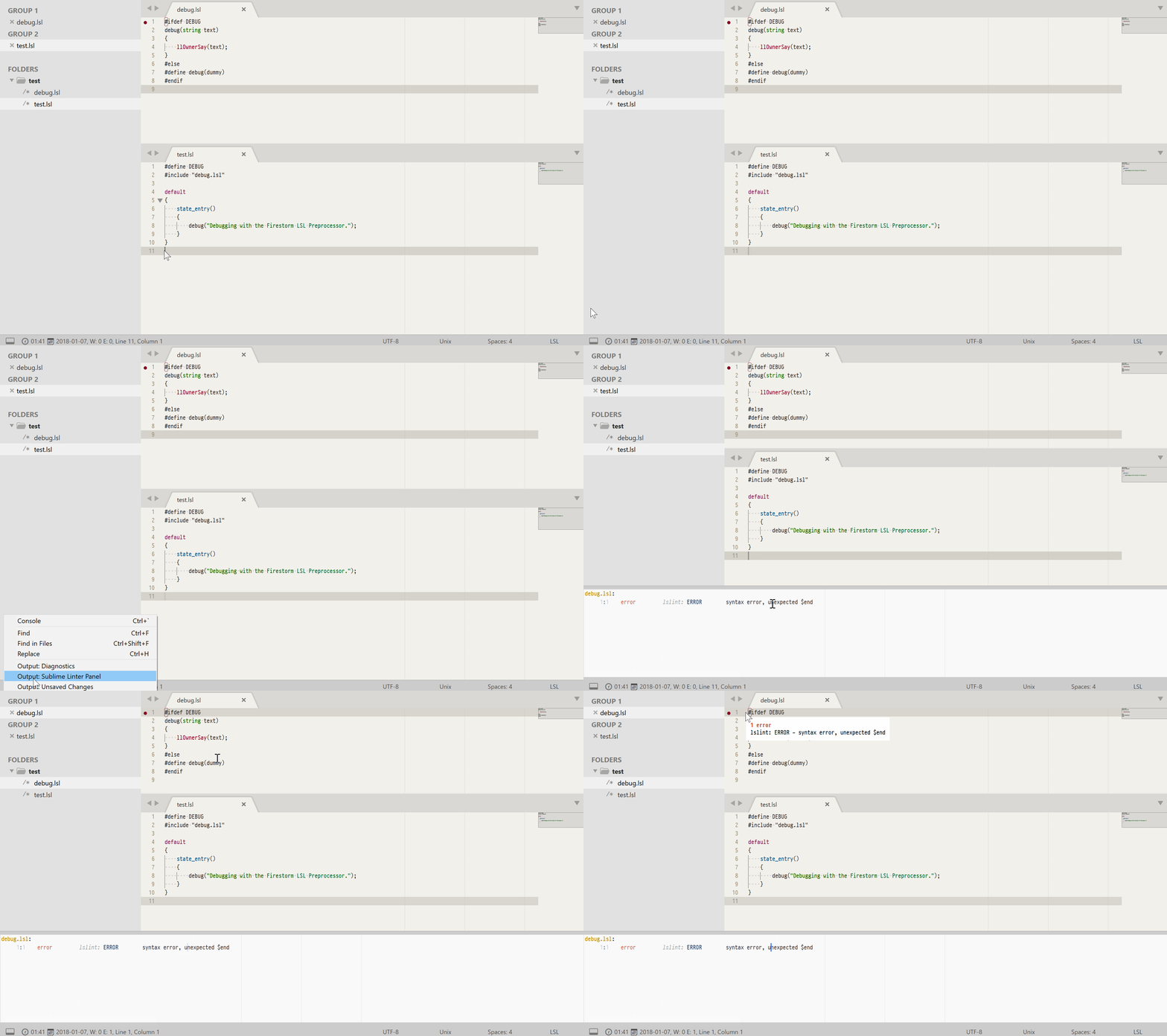
- Linting
- Indent styles
- Settings
- Tooltips
- Disclaimer
Bringing Linden Scripting Language (LSL) support to Sublime Text.
With regards to the development of this package, supporting new features of Sublime Text as they become available takes precedence over ensuring backwards compatibility.
Therefore this package targets and is tested against the latest Build of Sublime Text, releases are frequent and the requirements for this package will be updated accordingly.
Implicitly this might require you to be on the dev release channel and consequently have a valid Sublime Text license.
- Sublime Text
Build 4073or later- Buy a new license: https://www.sublimehq.com/store/text
- Retrieve a lost license: https://www.sublimehq.com/store/retrieve_key
Package Control- via
Tools > Install Package Control …
- via
SublimeLinter- Open the command palette
- via
Tools > Command Palette
- via
- Select
Package Control: Install Package - Select
SublimeLinter
- Open the command palette
Make sure your setup meets the requirements before you:
- open
Sublime Text - open the command palette
- via
Tools > Command Palette
- via
- select
Package Control: Install Package - select
=BB= LSL
To get LSL syntax highlighting in tooltips, refer to the settings section.
Close and re-open Sublime Text.
When editing scripts in the viewer, click the EDIT button in the script edit window. Save and close view (tab) when done.
To use Sublime Text for editing your script in-world:
- Enable:
Me > Preferences > Advanced > Show Advanced menu - Go to:
Advanced > Show Debug Settings - Edit:
ExternalEditor
Setting consists of these three parts:
- Path to editor (use quotes if path has spaces)
- Optional command line params
"%s"will paste script path automatically (do NOT change this)
For a list of Sublime arguments run subl --help and/or refer to the OSX Command Line documentation.
"/usr/bin/subl" "%s"
"/Applications/Sublime Text.app/Contents/SharedSupport/bin/subl" "%s"
"C:\Program Files\Sublime Text\subl.exe" "%s"
runs
lslint
- Select
Tools > Buildon Linux or macOS. - Select
Tools > Build with …on Windows and select a binary to use.
Output to a Build results panel, in which you can double click (possible) errors to move the cursor to that point in your file.
You can toggle using the official Color Scheme for LSL files by selecting Preferences > Package Settings > =BB= LSL > Settings > Use official color scheme for LSL files from the main menu.
The color scheme file can be overridden via Packages/User/LSL.hidden-color-scheme.
The issue tracker can be found at https://github.com/buildersbrewery/sublime-lsl/issues.
Please read CONTRIBUTING.md and make sure tests pass before sending a pull request.
Requires the
SublimeLinterpackage, uses the included binarieslslintif not found inPATH.Linting of LSL files using the Firestorm preprocessor was deprecated in
v5.0.0.
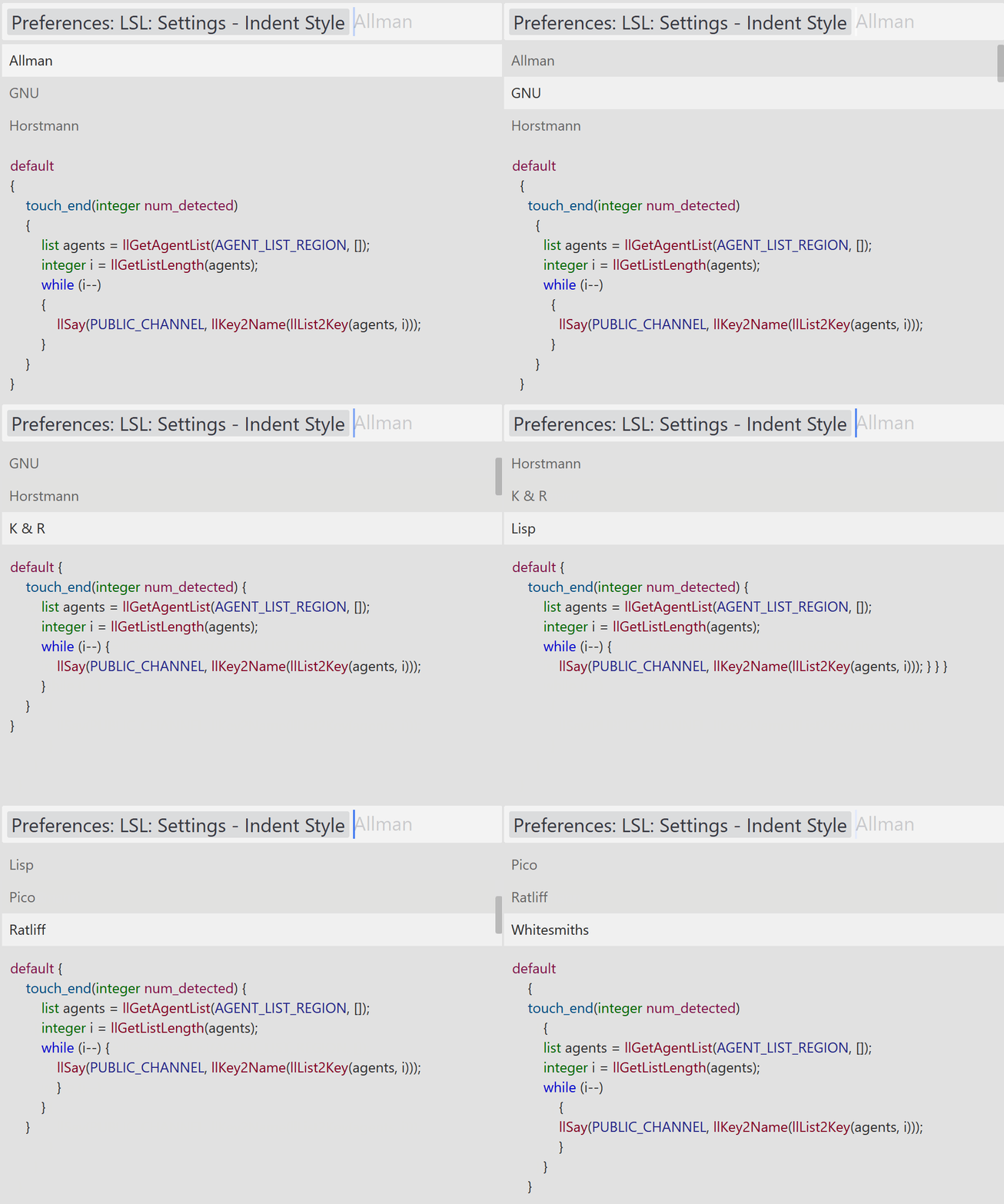
You can change the indent style of all LSL completions and snippets to:
AllmanGNUHorstmannK & RLispPicoRatliff- or
Whitesmiths
by:
- selecting
Preferences > Package Settings > =BB= LSL > Settings > Choose indent stylefrom the main menu - or selecting
Preferences: LSL: Settings - Indent Stylein the command palette
Open Preferences > Settings from the main menu.
These mdpopups.* settings are needed to get LSL syntax highlighting in tooltips:
//  "Packages/User/Preferences.sublime-settings"

{
    "mdpopups.sublime_user_lang_map":
    {
        "lsl":
        [
            [ "lsl" ],
            [ "=BB= LSL/.sublime/syntaxes/LSL" ]
        ]
    },
    "mdpopups.use_sublime_highlighter": true
}
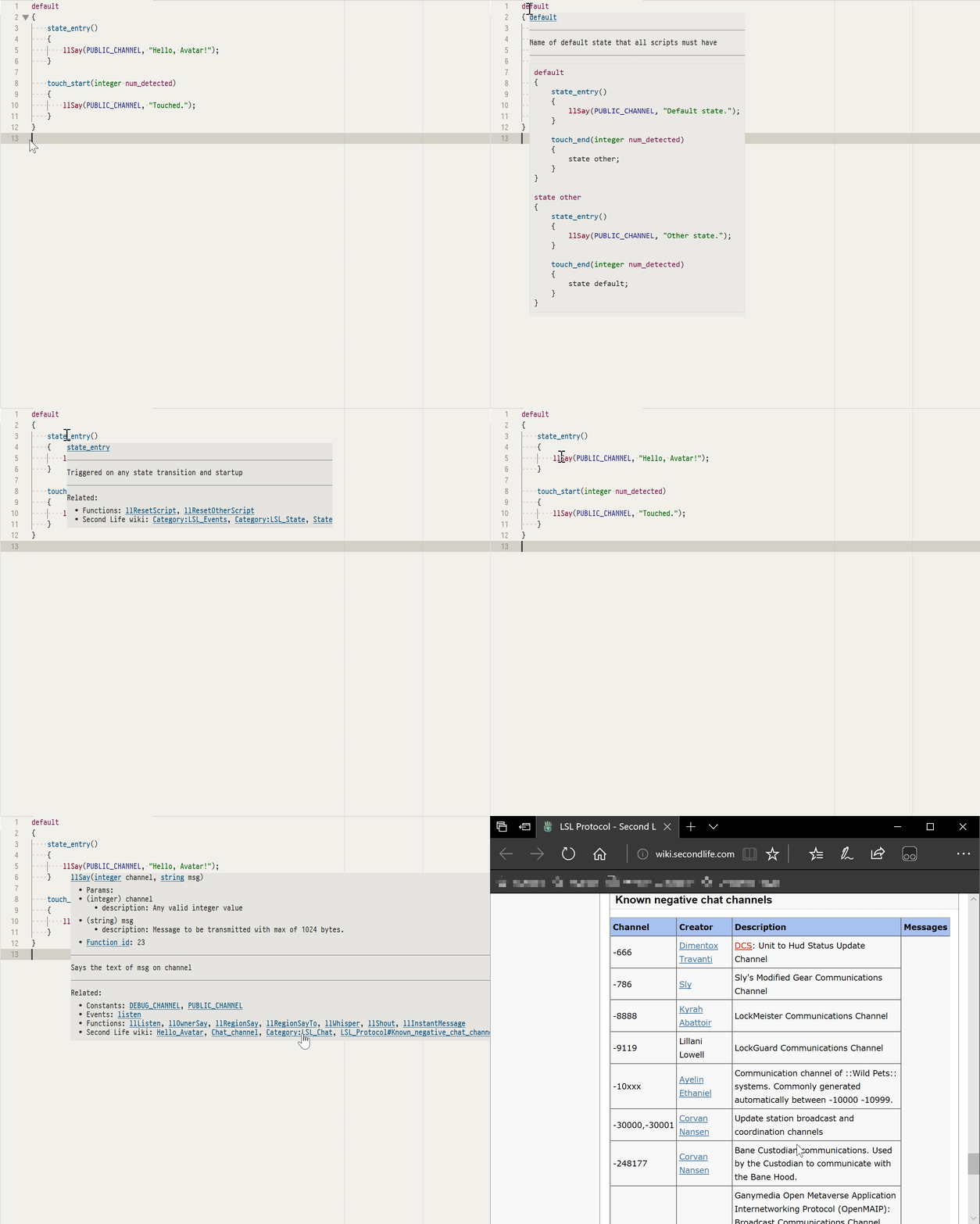
- Tooltips are displayed using the Package Control dependency
mdpopups. - Tooltips support LSL syntax highlighting in snippets and usage examples.
To get LSL syntax highlighting in tooltips, refer to the settings section.
Second Life (R) and the Linden Scripting Language are trademarks of Linden Research, Inc.
The Builder's Brewery is neither affiliated with nor sponsored by Linden Research.