WPF + .NET 10 simulation of a Beckhoff-style XTS transport line with service-driven logic, MVVM visualization, SQLite traceability, watchdog recovery, and operator-focused HMI diagnostics.
- .NET target:
net10.0-windows - UI: WPF (MVVM)
- Transport: 10 movers on oval/stadium XTS track visualization
- Process cells: 4 machines (Laser Welder, Assembler, Inspector, Tester)
- Transfers: 4 robots (mover ↔ machine)
- Station chains: 18 total stations
- Persistence: SQLite (
XTSFactorySim.dbin output path) - Runtime split-ready gateway boundaries:
IMachineGatewayService(machine commands + telemetry)IDataGatewayService(history/tables/export)LocalSimulationServiceGatewayimplements both interfaces for local modeRemoteTwinCatMachineGatewayMocksimulates remote machine boundary with configurable latency
- Runtime gateway mode toggle via app resources in
App.xaml - PLC/TwinCAT-style FBs:
- Motion FBs (
McPower,McMoveVelocity,McHalt,FbXtsMoverAxis) - Process FBs (
TON, alarm latch, machine cycle sequencer)
- Motion FBs (
- Deterministic routing:
M0 -> M1 -> M2 -> M3 -> Exit - Machine sequencer states:
Init,Ready,Run,Fault,Reset - ET/PT timeout supervision per station (TON)
- Queue spacing on movers to reduce overlap/stacking
- Entry/Exit zone blink indicators tied to real load/unload events
- Watchdog supervision + controlled recovery:
- machine stall
- robot stall
- mover stall
- rehome/scrap fallback + root-cause alarm codes
- Beckhoff-like oval track with lane markings, seams/module look
- Entry / Load and Exit / Unload zones with live blinkers
- Machine mini-HMIs on main canvas with outward spacing for readability
- Robot transfer overlays on canvas:
- moving robot glyphs between mover dock and machine dock points
- animated dashed transfer lines with glow
- direction arrowheads at active destination end
Indexed in navigation order for first-time visitors.


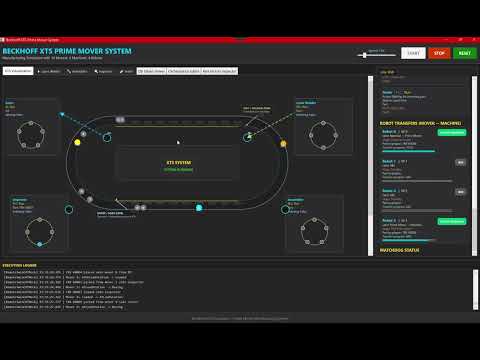
- Citation: YouTube (unlisted) project runtime demo —
https://www.youtube.com/watch?v=cIq1iMvu8MY
- Production counters and yield
- Gateway mode indicator (Local vs Remote TwinCAT Mock)
- Color/flow legend (what yellow/BaseLayer means, etc.)
- Mover live explainer:
- state, part, next target, wait reason, position
- Machine runtime tracking:
- action, station, part, ET/PT, fault text
- Robot transfer status and progress:
- lane direction, stage, transfer progress, active/idle badge
- Watchdog status table (code/count/last object/time/message)
- Auto-scroll runtime log stream for movement, transfers, alarms, recoveries
Tables currently used:
RecipesPartsPartEventsMachineRunsResultsProductionSnapshotsErrorLogsAlarms
- Open solution in Visual Studio 2026+.
- Restore/build (
Debug | Any CPU). - Run with
F5. - Use header controls:
STARTSTOPRESET- Speed slider (
0.1x..5.0x)
- Clone repo:
git clone https://github.com/anoop6543/XTSPrimeMoverProject
- Open in Visual Studio with same GitHub account used for Copilot.
- Ensure Copilot is enabled in VS.
- Read these first:
README.mddocs/ARCHITECTURE.mdAGENTS.md
- Build once before edits.
- Prefer service/model changes first, then ViewModel, then XAML.
- Retain history context by committing/pushing project docs (
README,ARCHITECTURE,AGENTS) and code changes. - Use same GitHub account + same repo branch context.
- Chat/session history itself is environment-dependent; the canonical persistent context for future Copilot runs is the repo content and these docs.
- Engine:
Services/XTSSimulationEngine.cs - Logging:
Services/SimulationDataLogger.cs - PLC/Motion FBs:
Services/TwinCAT*.cs - Models:
Models/*.cs - View root:
ViewModels/MainViewModel.cs - Machine/data gateway contracts:
Services/HmiServiceContracts.cs - Local gateway adapter:
Services/LocalSimulationServiceGateway.cs - Remote machine mock:
Services/RemoteTwinCatMock/RemoteTwinCatMachineGatewayMock.cs - Main UI:
MainWindow.xaml - Architecture:
docs/ARCHITECTURE.md - Split-runtime plan:
docs/SEPARATED-RUNTIME-PLAN.md - Agent context:
AGENTS.md